01
Overview of Visualizer Usage
In this video, we'll show you how to use your visualizer for images, for videos, and for estimates.
Nexus Visualizer · Academy guide
Watch the walkthrough, then follow the written steps and screenshots below.
In this video, we'll show you how to use your visualizer for images, for videos, and for estimates.
You get 250 tokens per month. An image costs 1 token, a video costs 10 tokens.
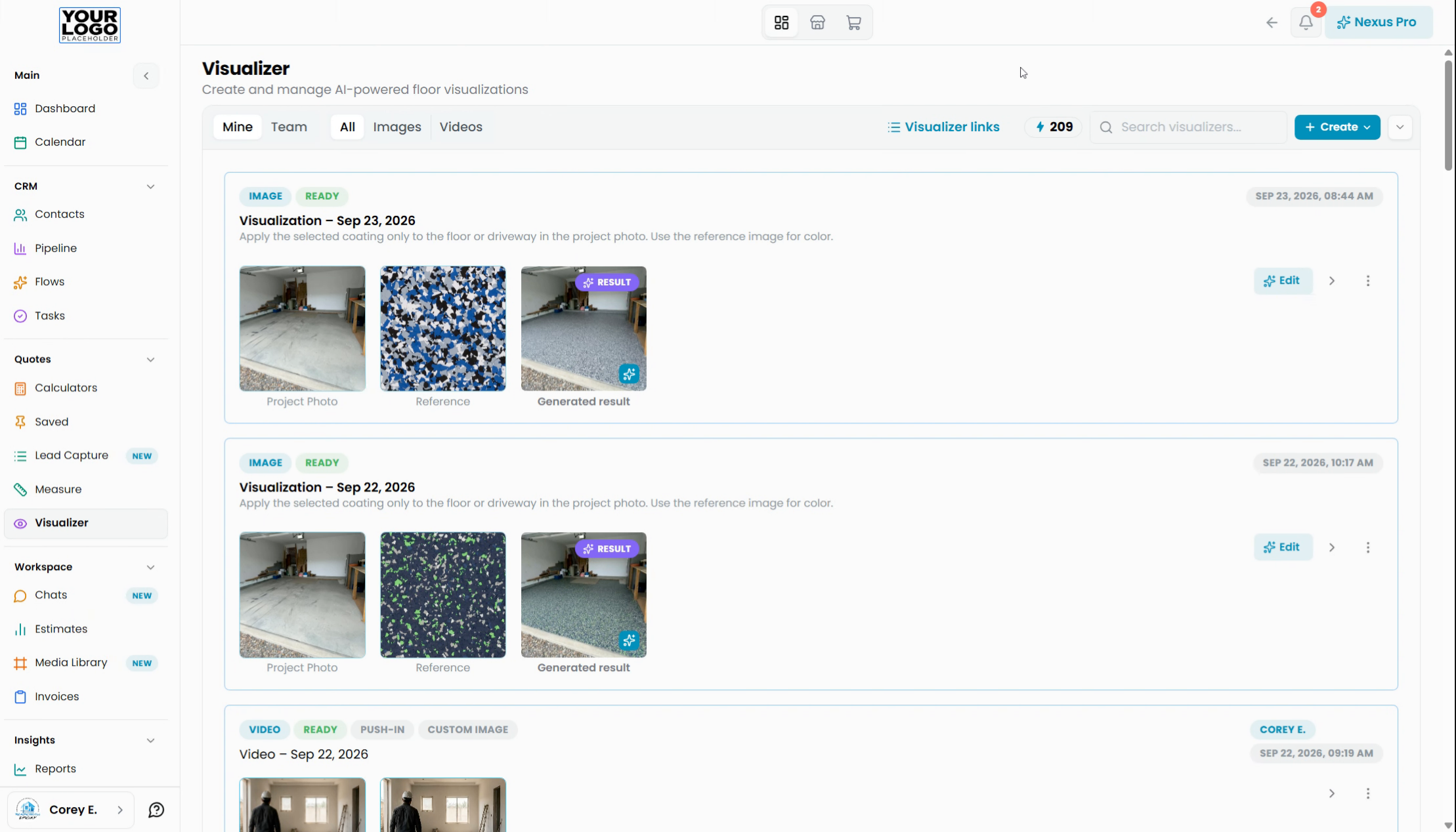
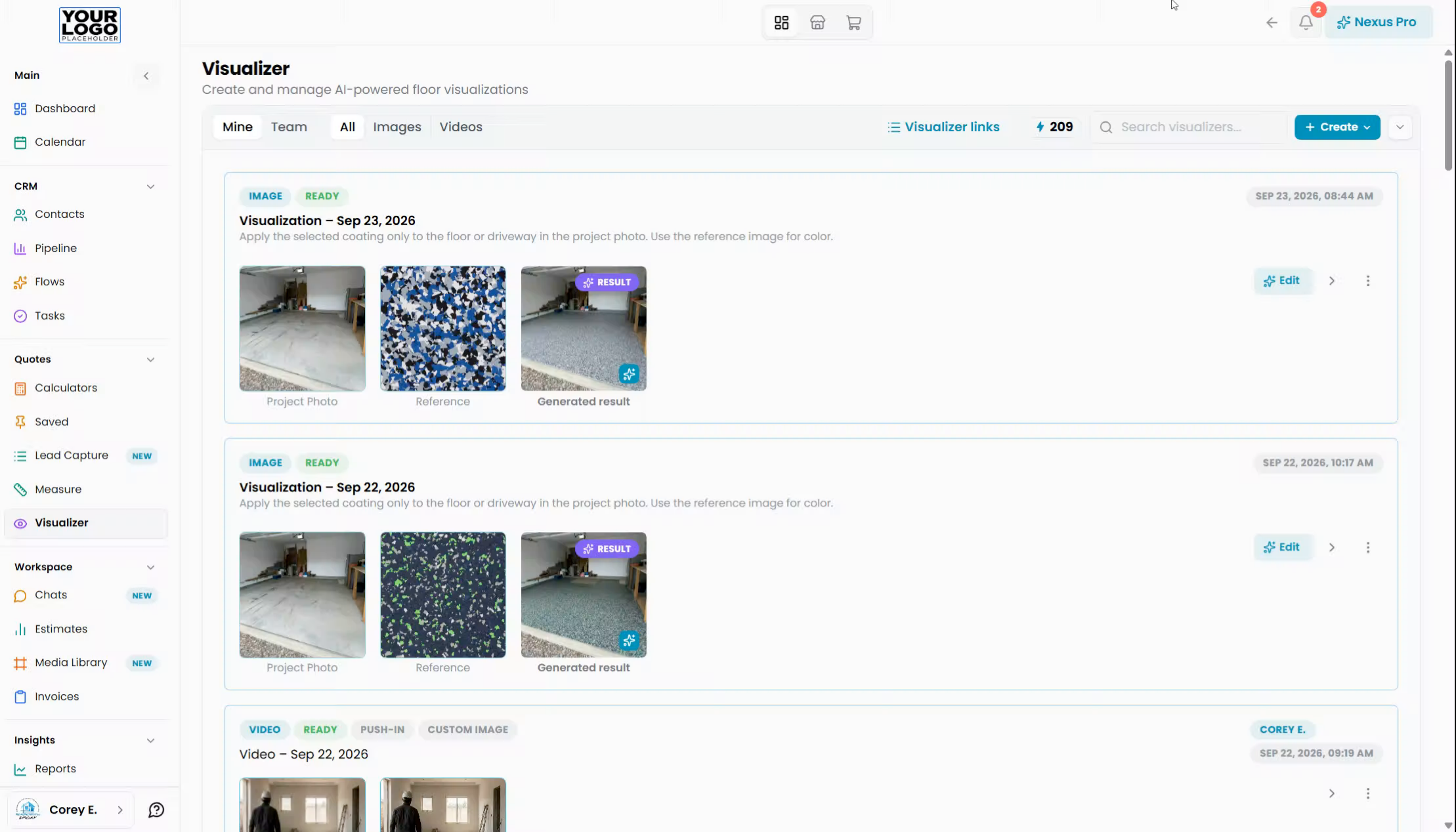
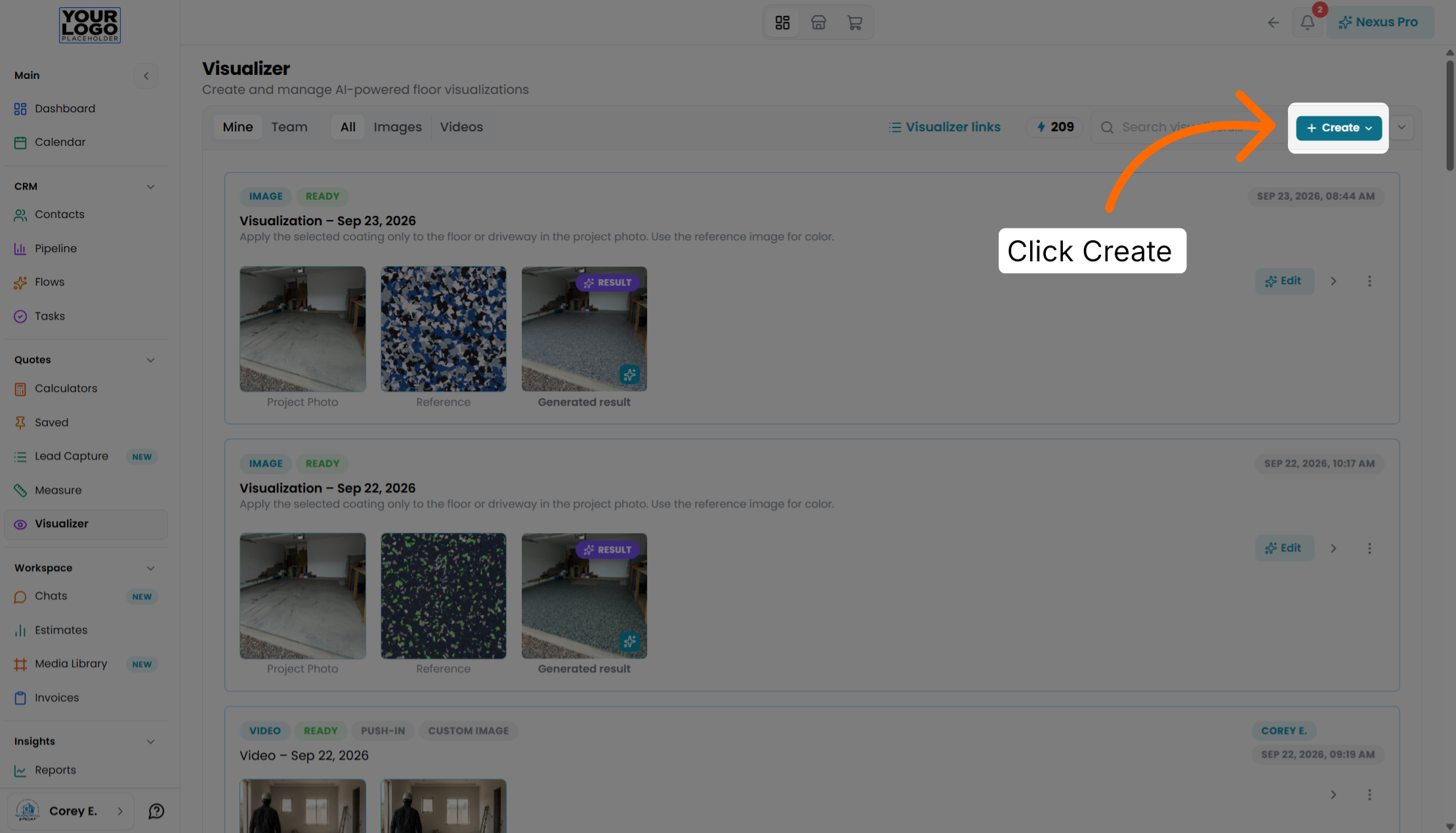
Click here to access the Visualizer section within Floor Nexus where you can manage your visualizations.
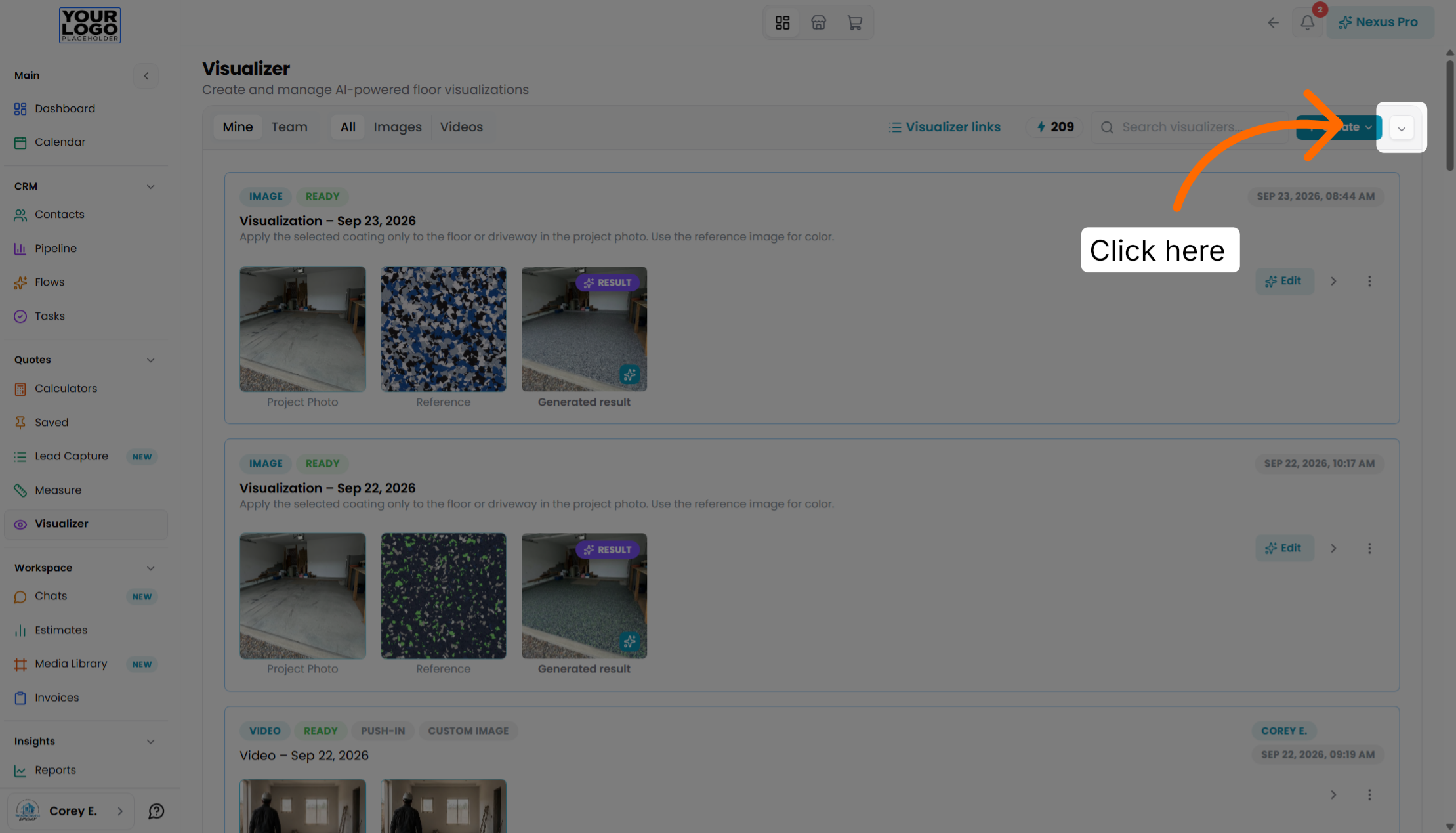
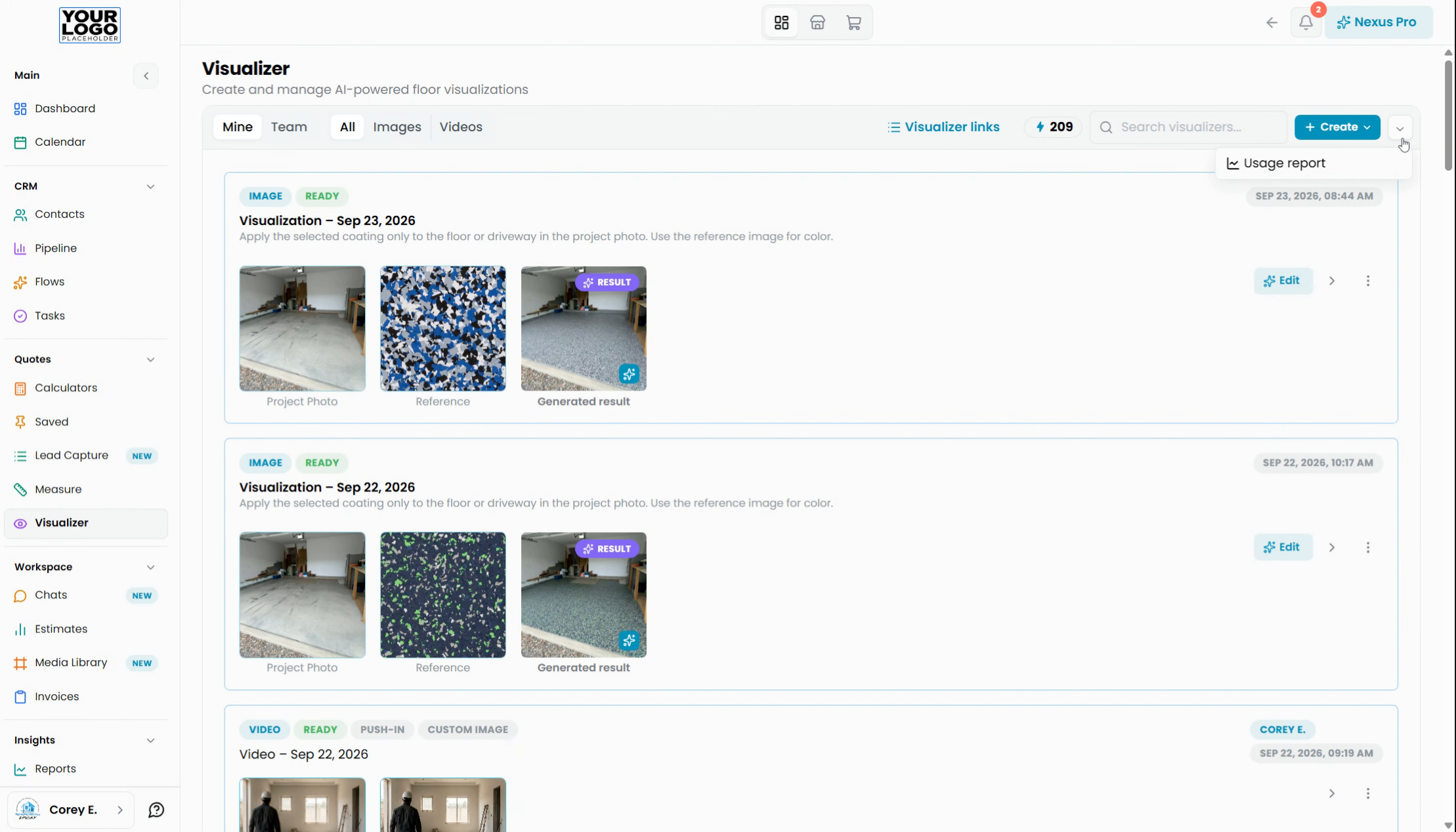
Here, you can track your usage report by start date or by employee.
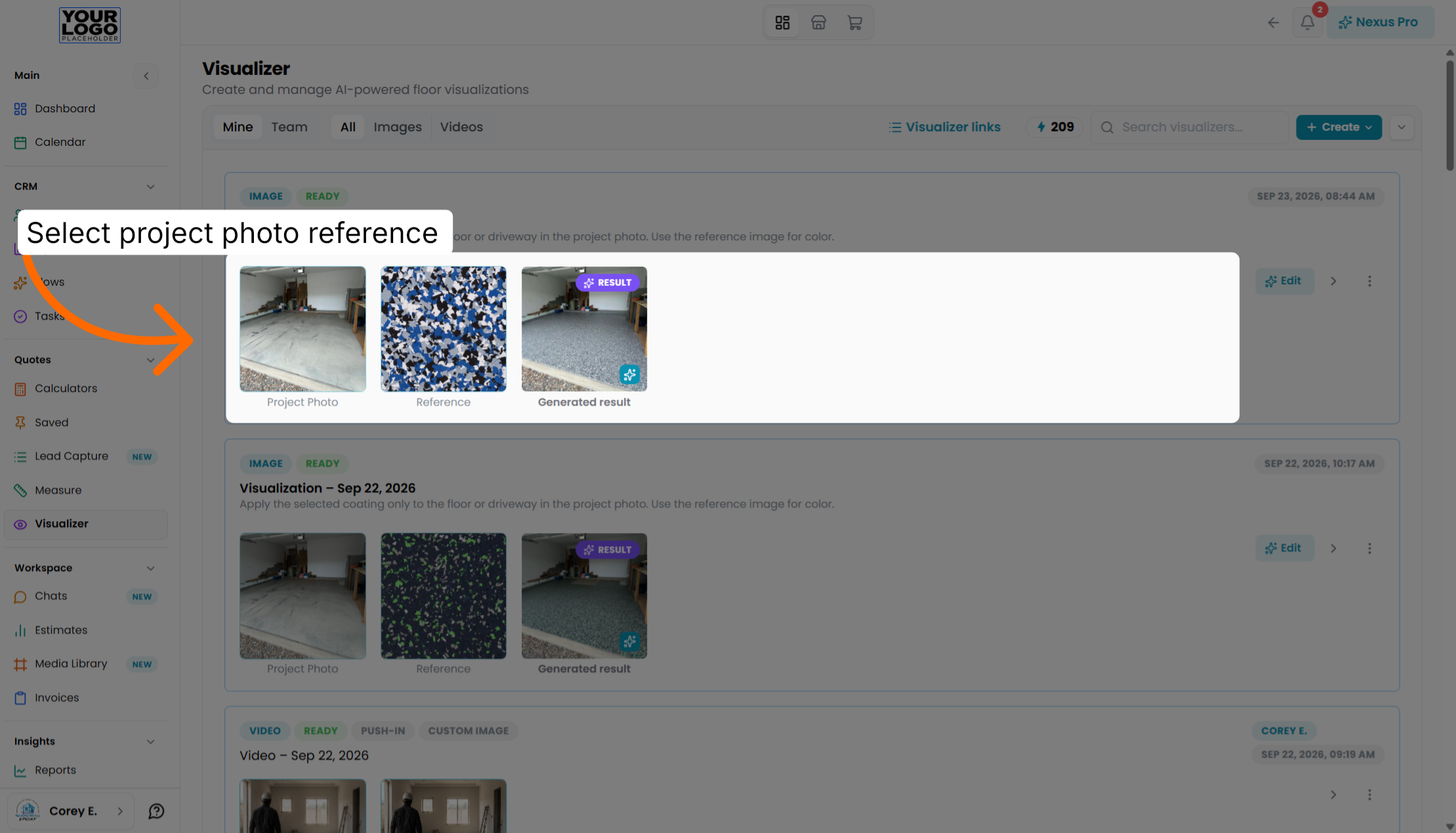
Click the project photo reference result to view detailed visualization data.
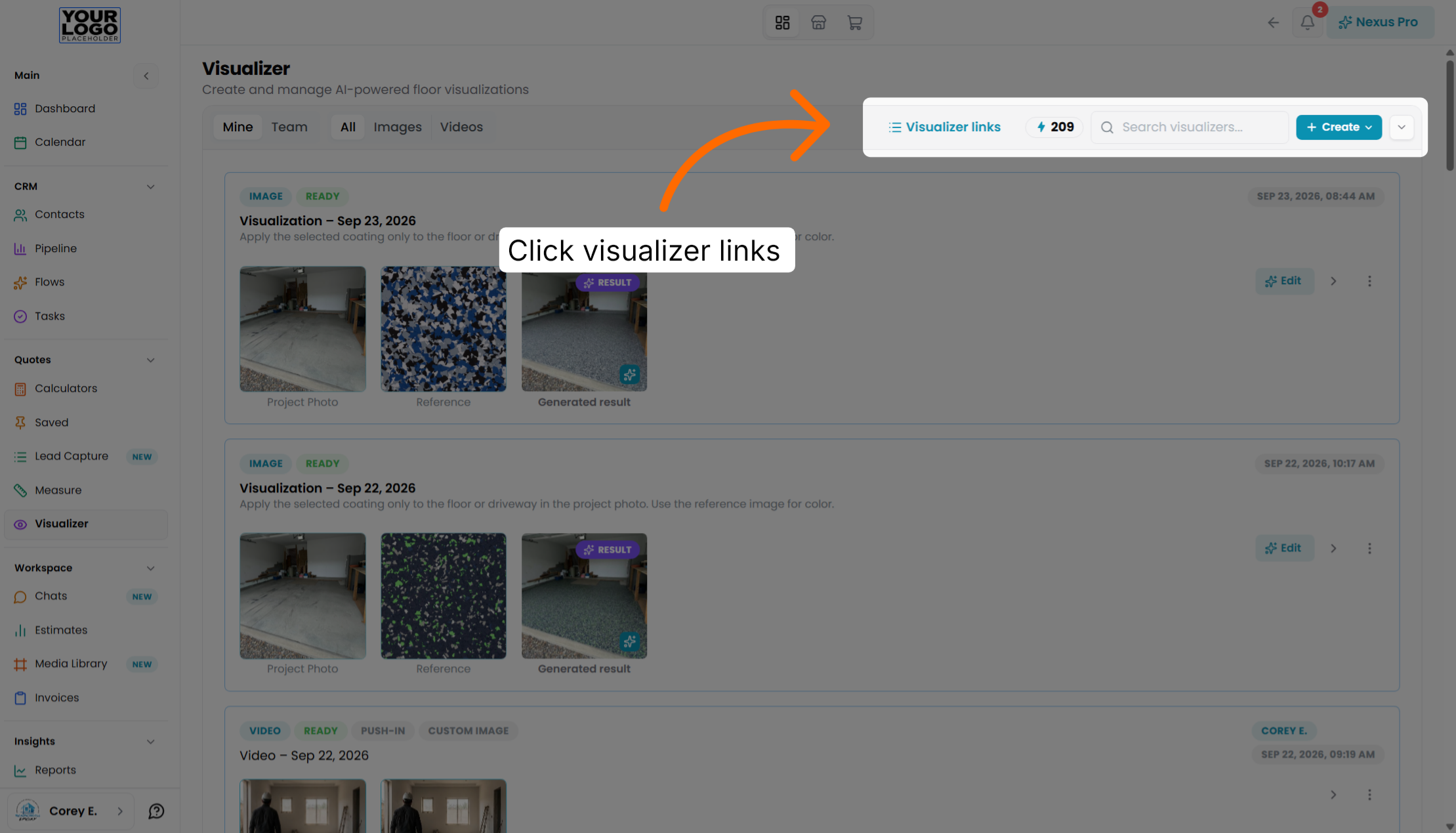
Click the visualizer links button to create visualization links for leads or as an embedded feature on your website
Click the Create button to start creating a new visualization or shareable link.
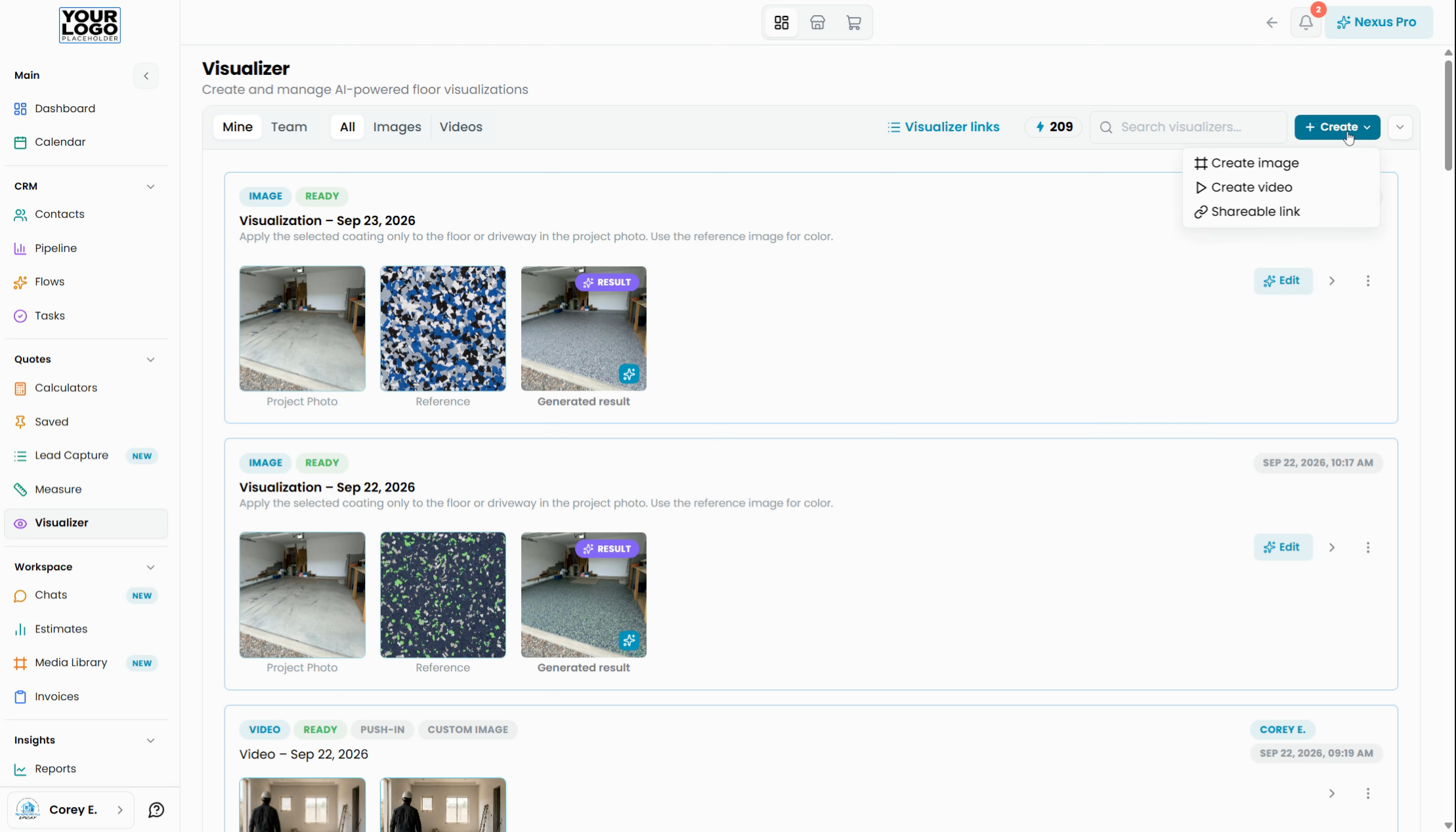
You can create an image, create a video, or create a shareable link. First, we'll start with a shareable link. This is a direct link that goes to a homeowner, and you can send this link so they can visualize their space.
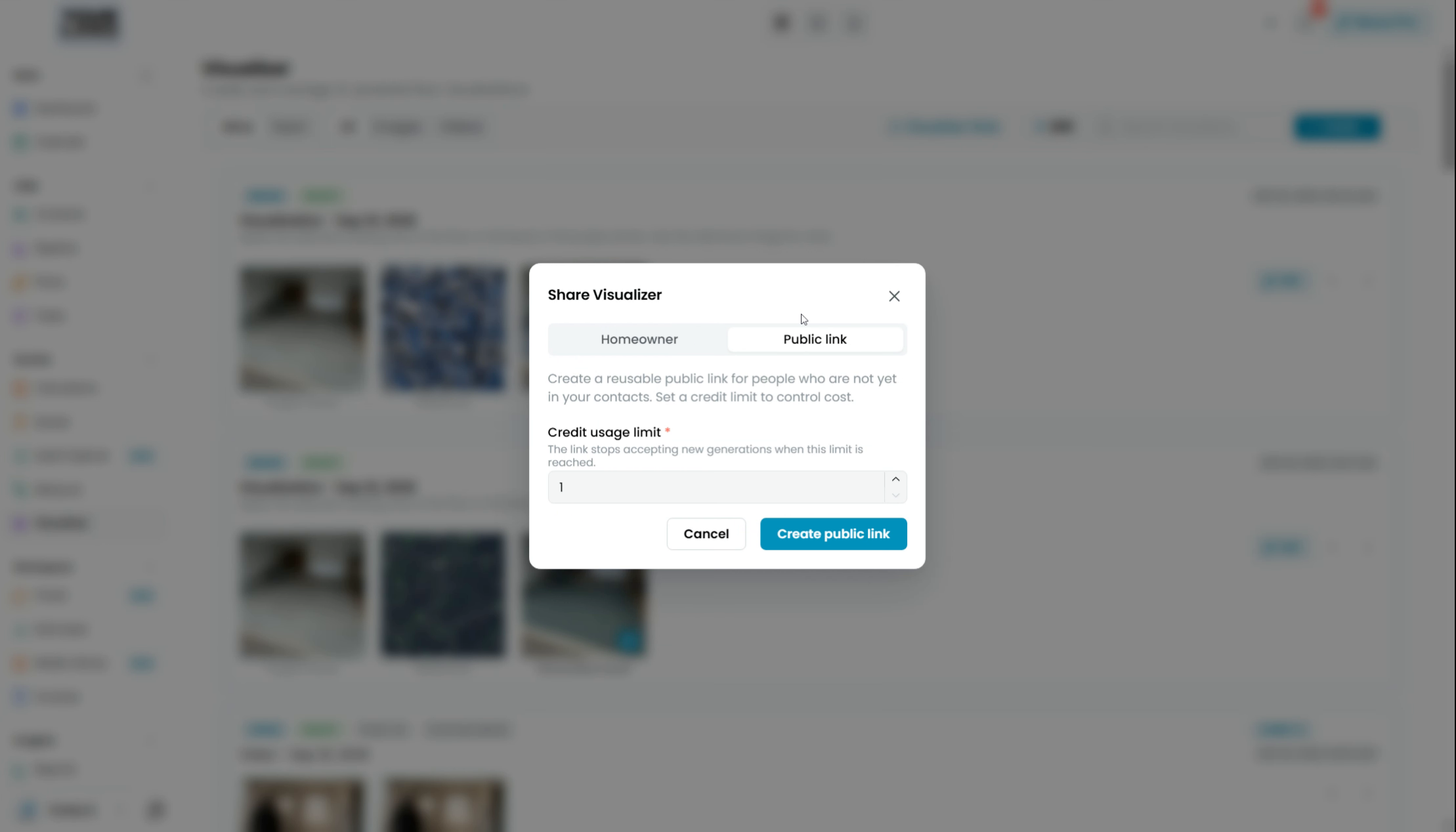
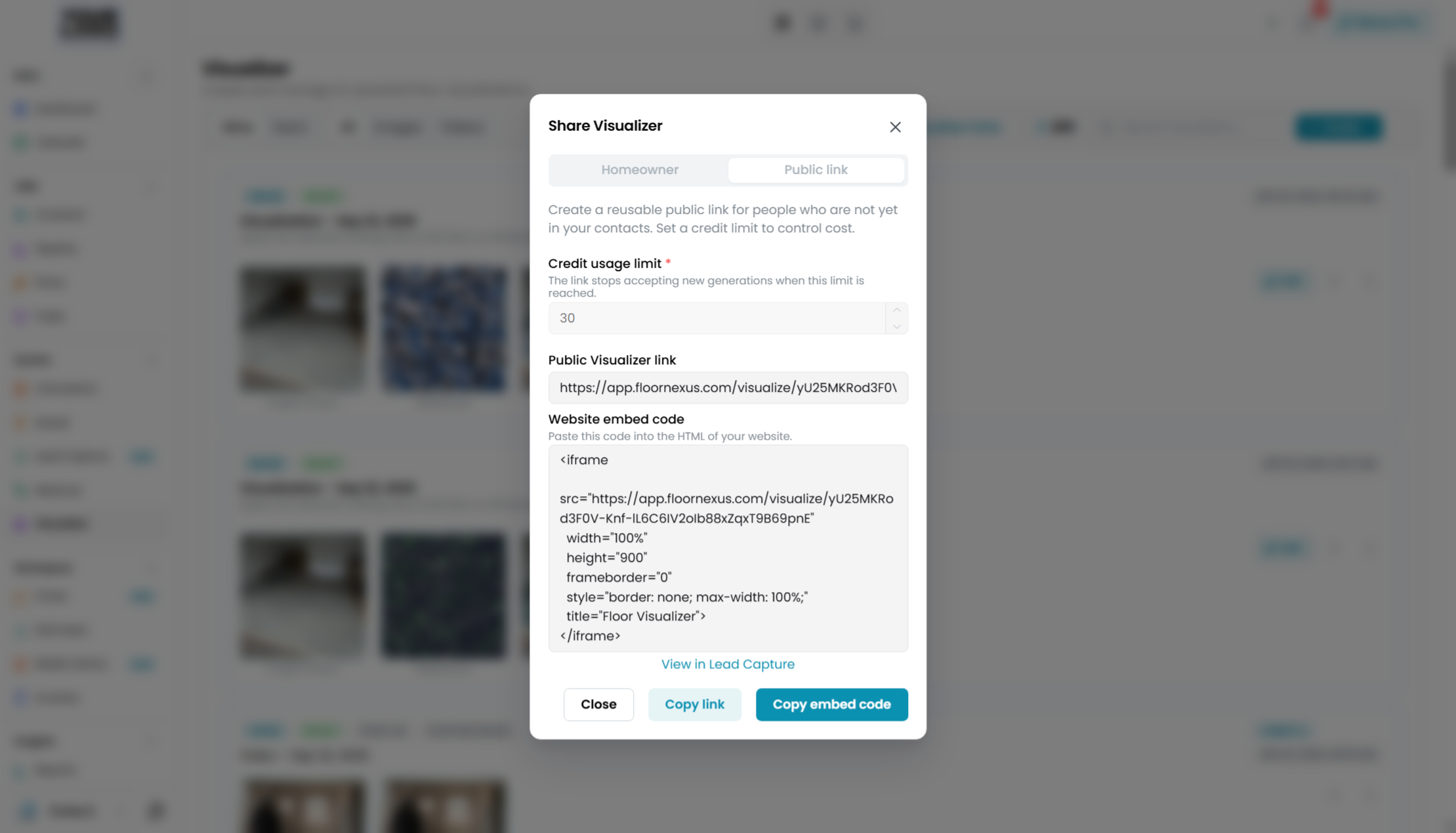
This is a public link that can go on your website, and you can determine how many tokens you want to use on a monthly basis for this visualizer link. If we put in a usage limit of 30 and hit create public link, this is the iframe that you would put on your website, or this is a link that you could just use. Essentially, people can do a visualization from a link page.
Click here to open the visualization interface where homeowners can start their visualization process.
This would show your visualization. Each homeowner has the ability to do two visualizations. They start the visualization, they put their information in, they choose a system.
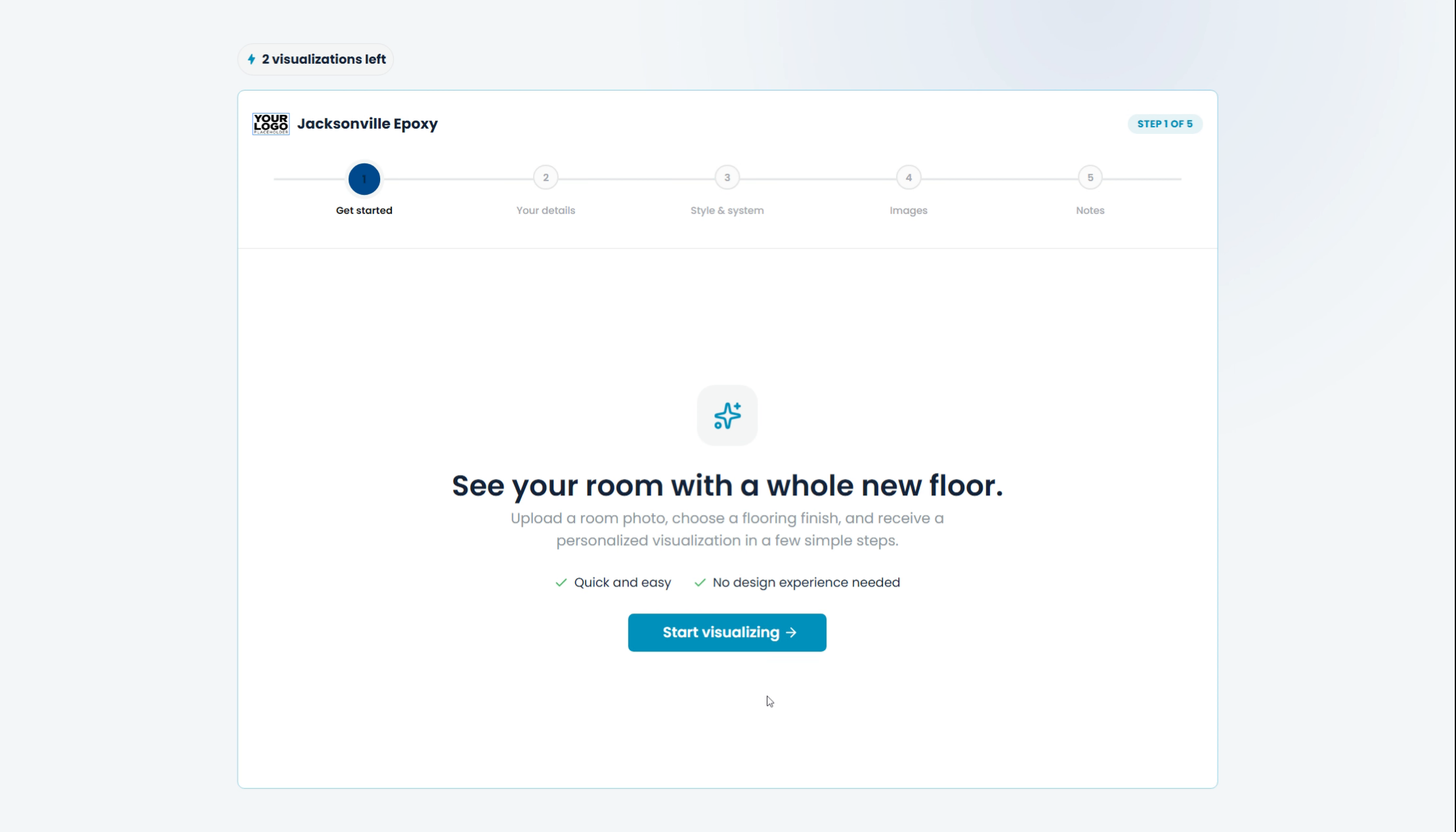
Click the specific system option to choose the system for the visualization.
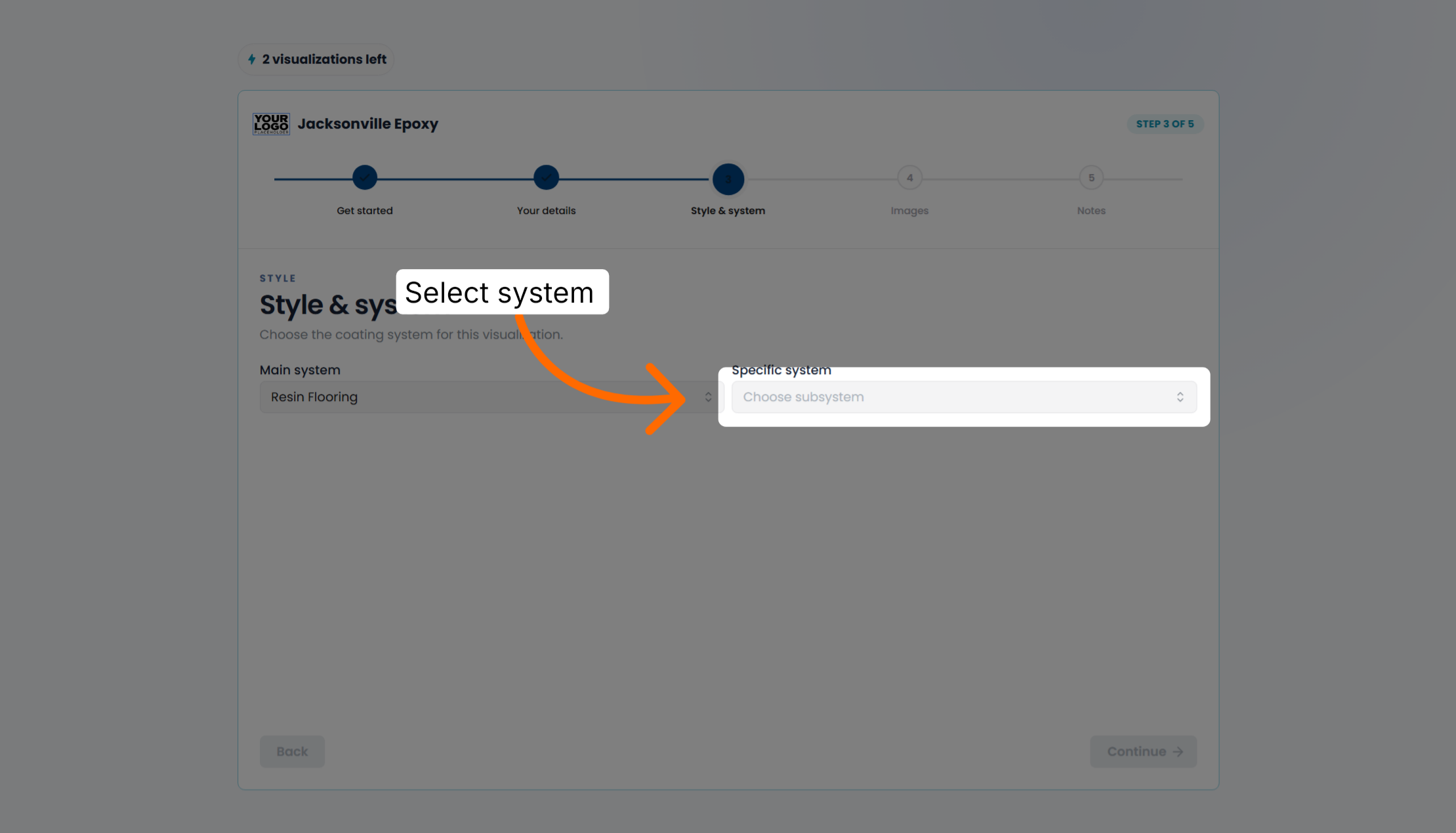
Click the flake option to select it as part of the visualization process.
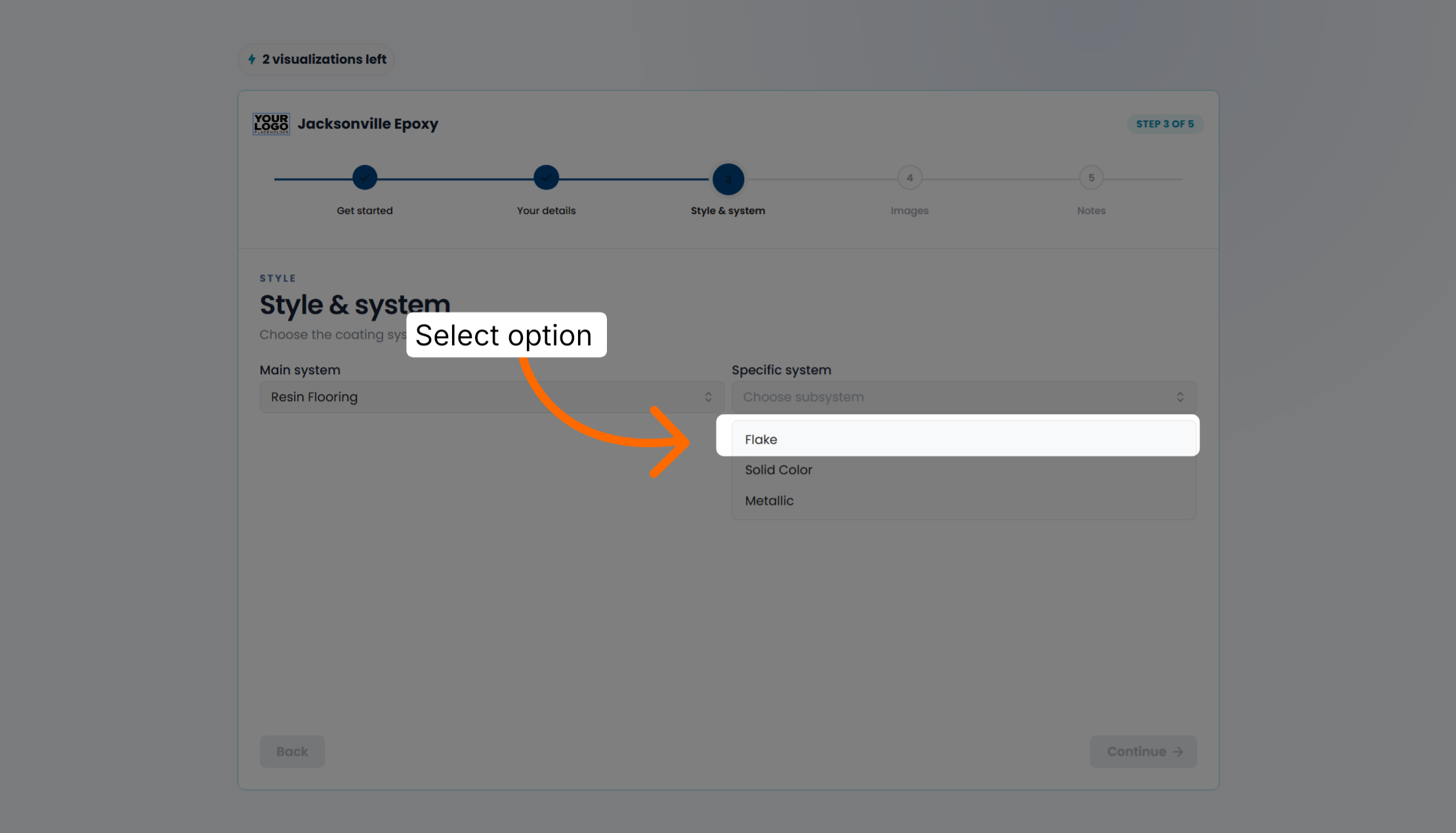
Click the Continue button to move forward in the visualization setup.
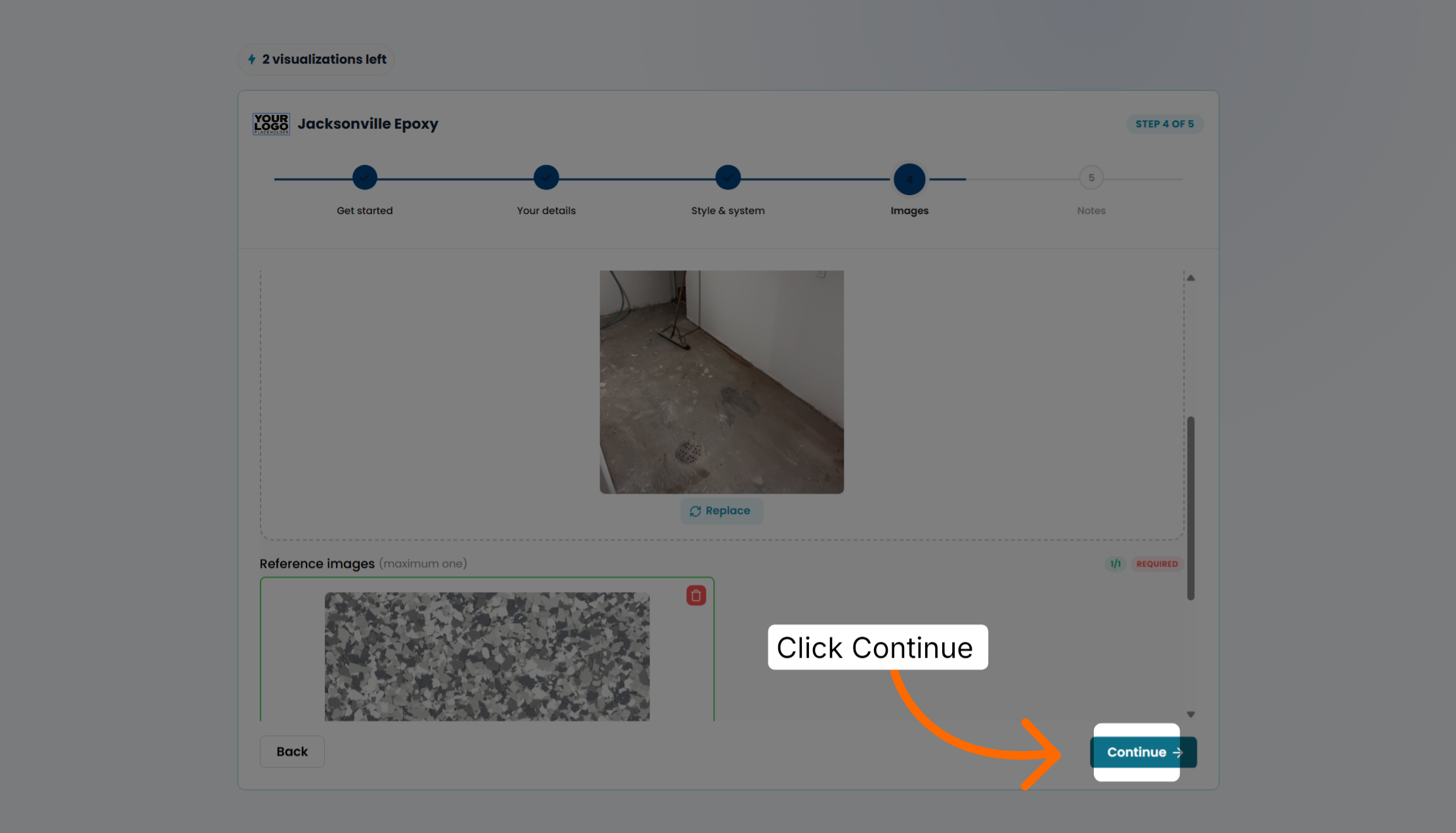
Upload their product image. Upload a sample image.
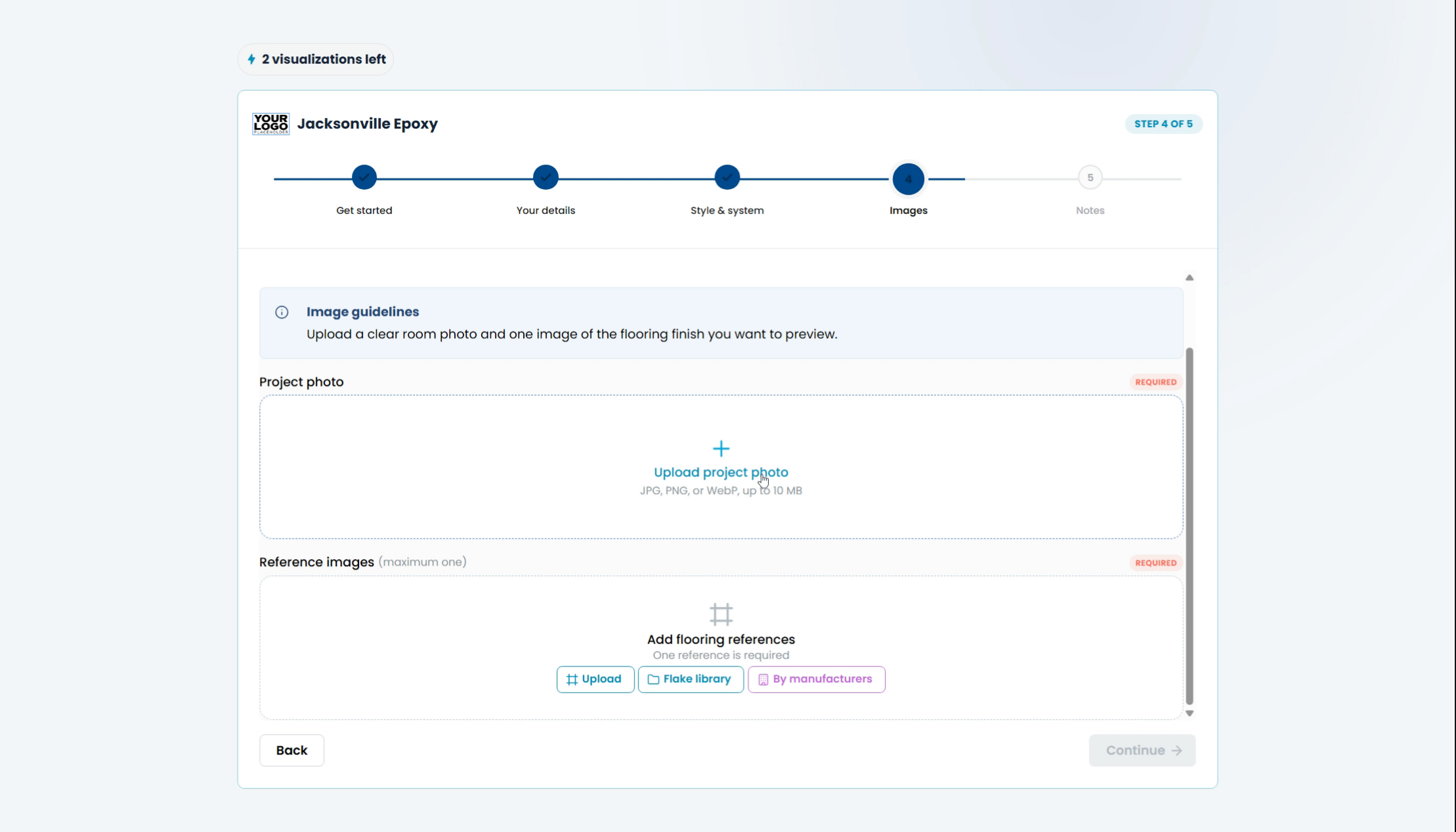
Click the Continue button to proceed with the visualization process.
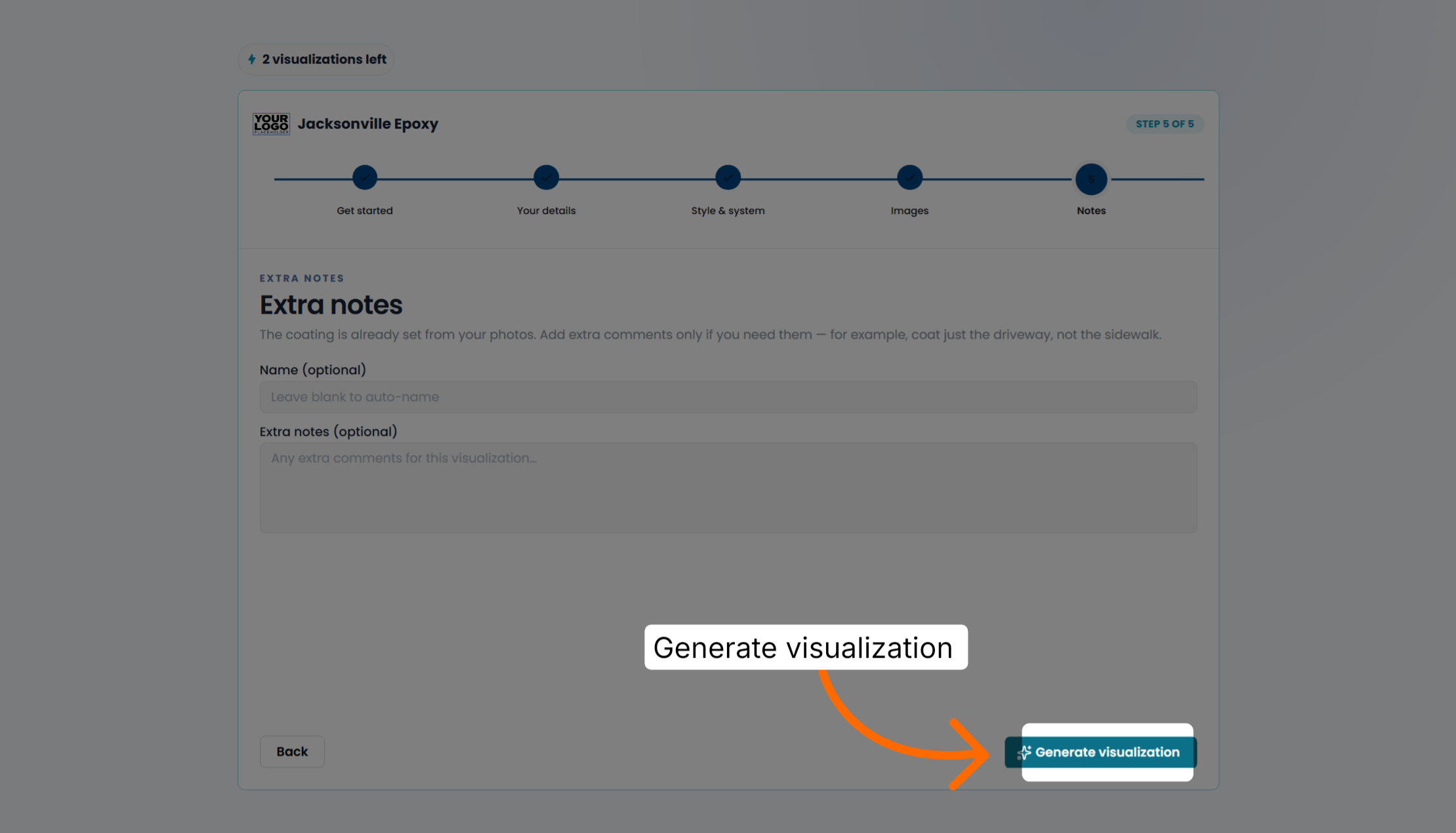
Click the Generate visualization button to create the visual representation of the space.
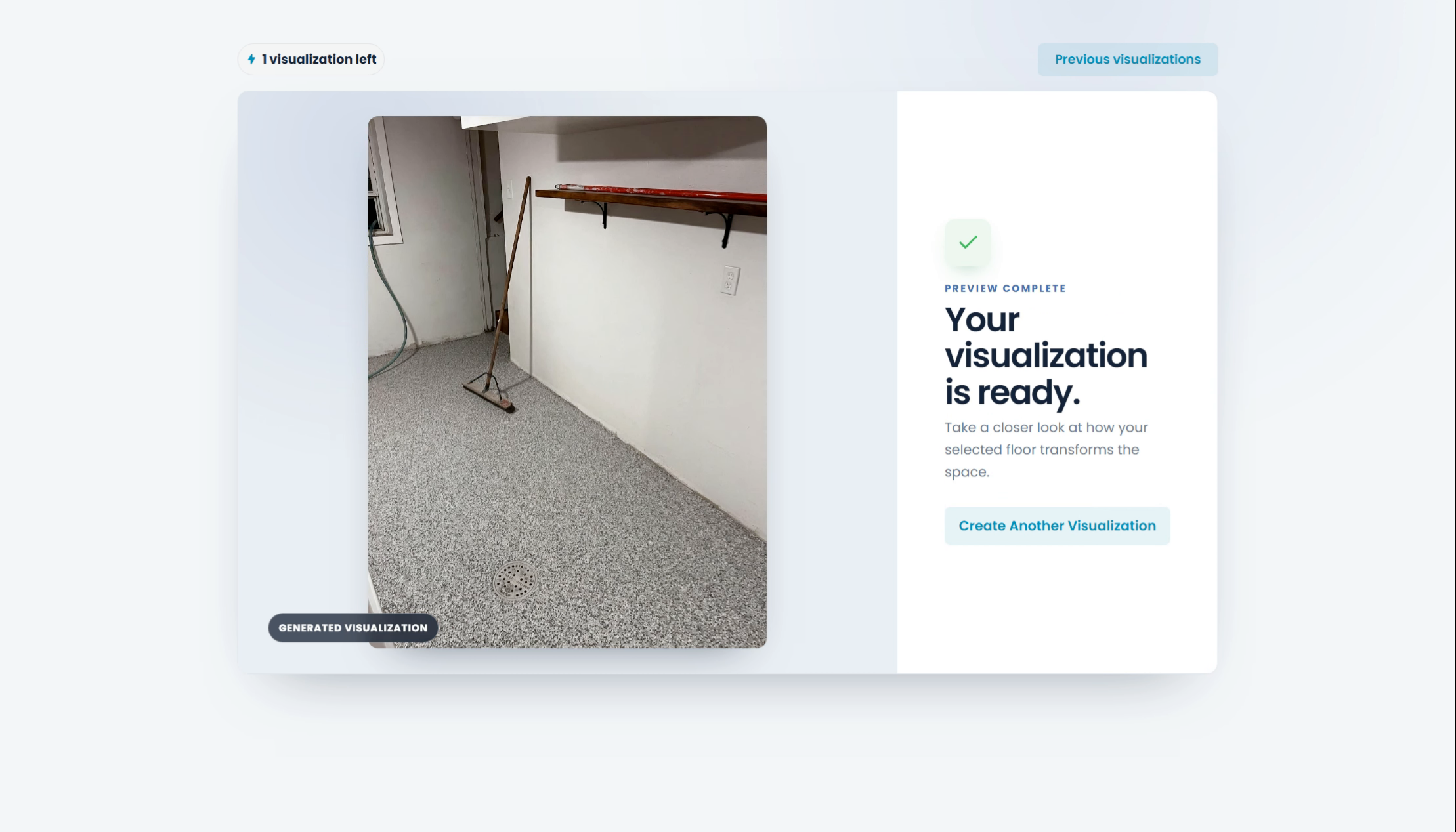
And now their visualization is being created in less than 20 seconds.
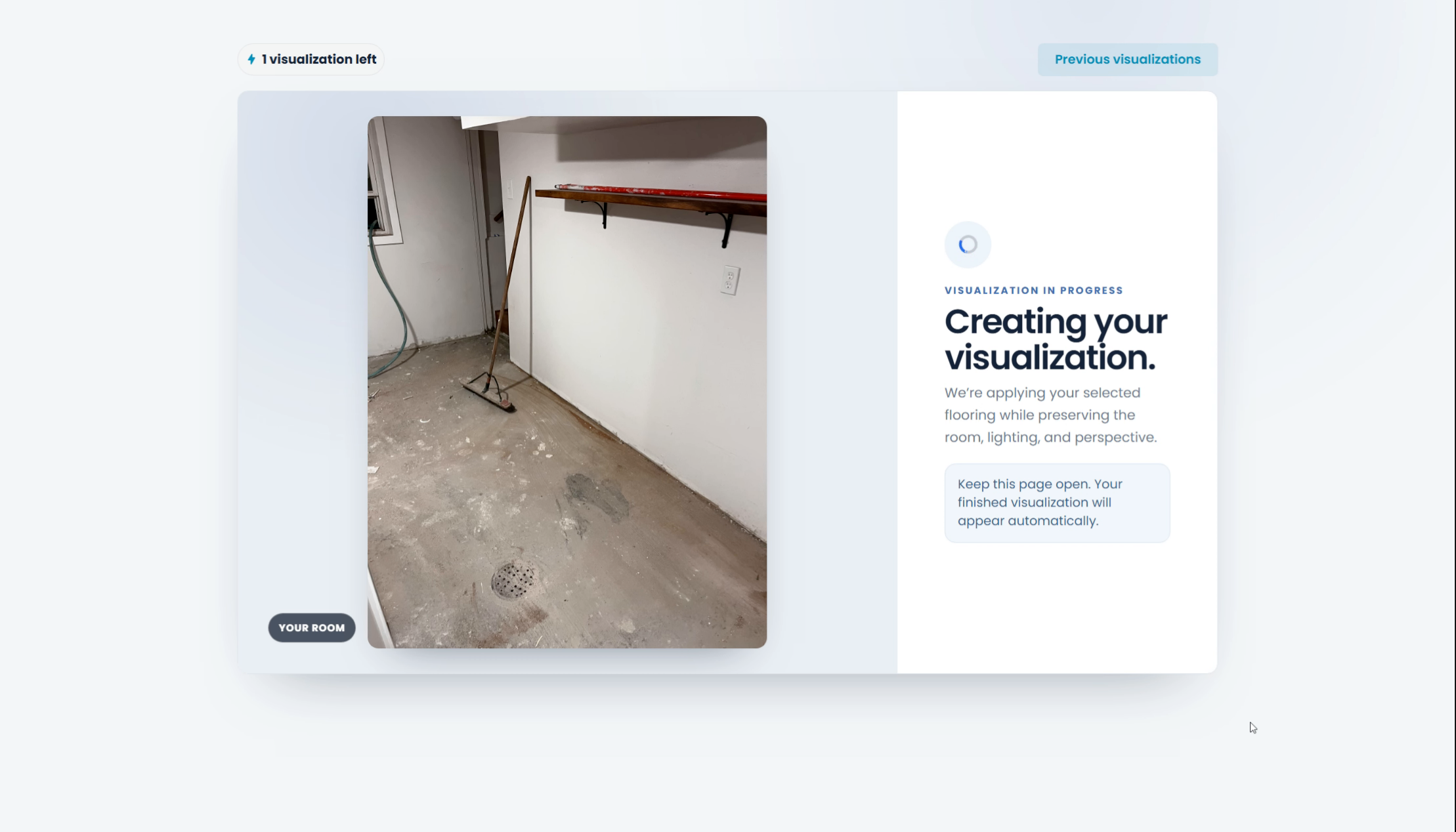
Your visualization is complete. Your homeowner gets to see a picture of their space. Next, they wait for your call to move forward with the job. That's how you do a visualization on your website or if you're sending it to a homeowner.