01
Client Selection And Room Naming
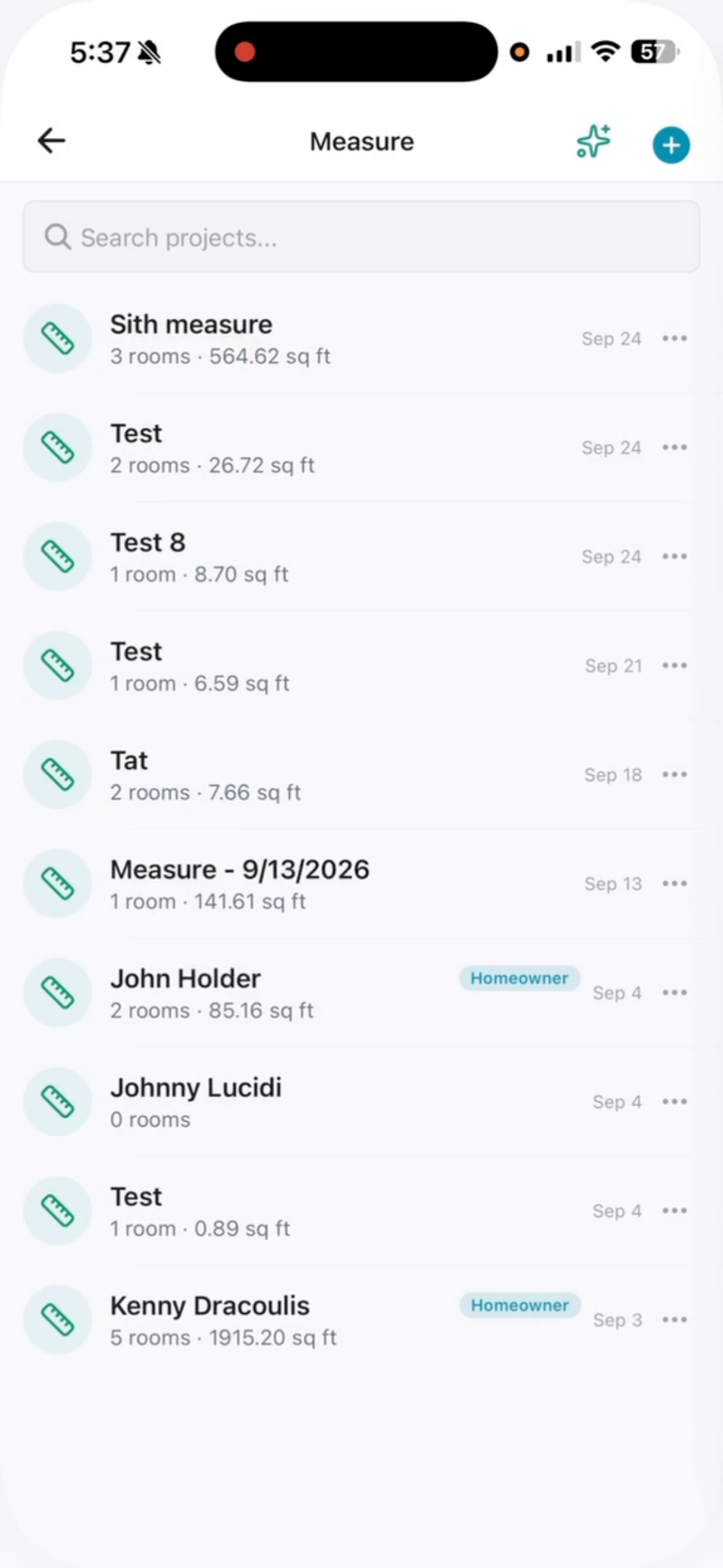
First, you'll want to come in and select your client or hit the plus icon to name a new room.
Nexus Measure · Academy guide
Watch the walkthrough, then follow the written steps and screenshots below.
First, you'll want to come in and select your client or hit the plus icon to name a new room.
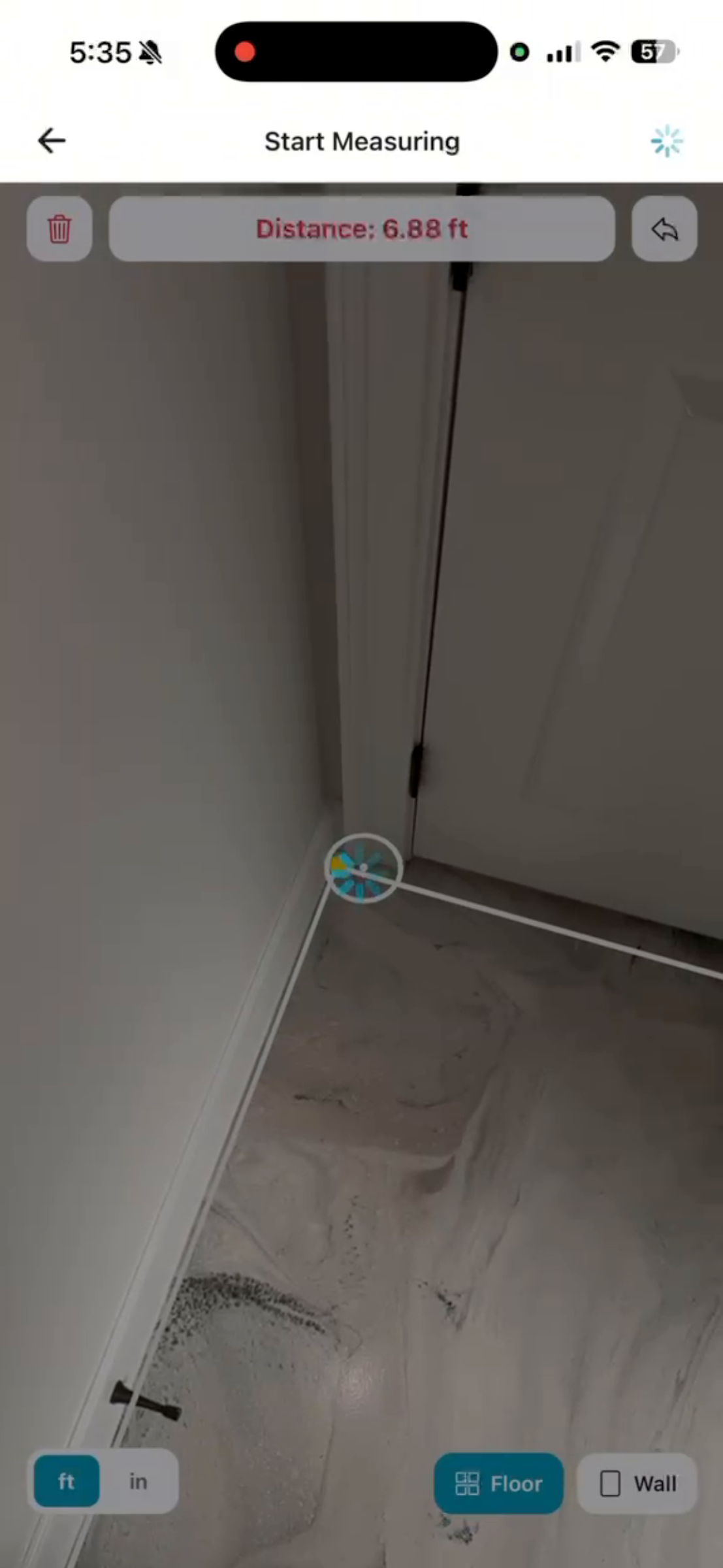
From here, move your phone from side to side. You can adjust to a wall and go vertical. You can tap the undo button to undo what you just previously did. Switch back to floor. To have accurate measurements, it’s important to move at a slow pace.
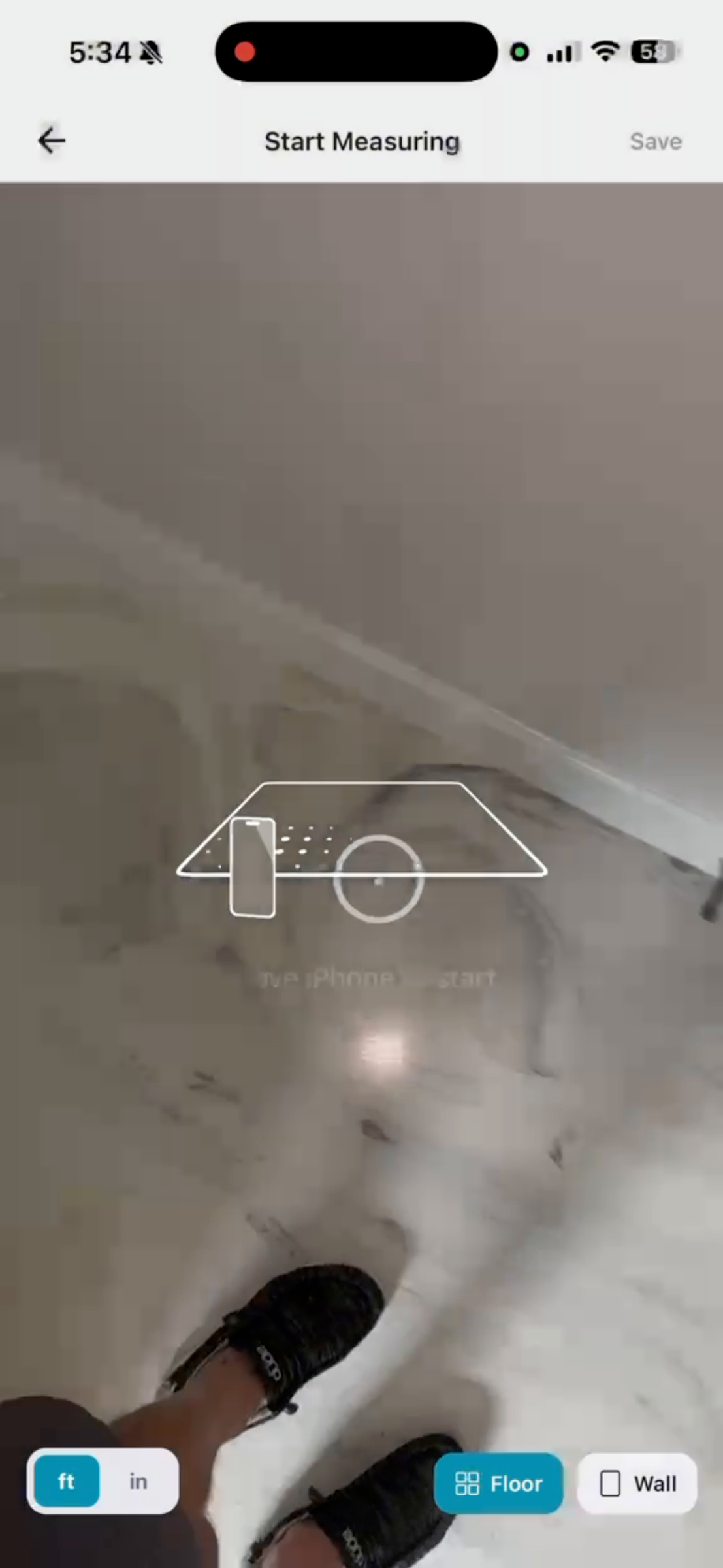
Having objects in the way doesn’t matter. Tap the button and just keep going to your corners.
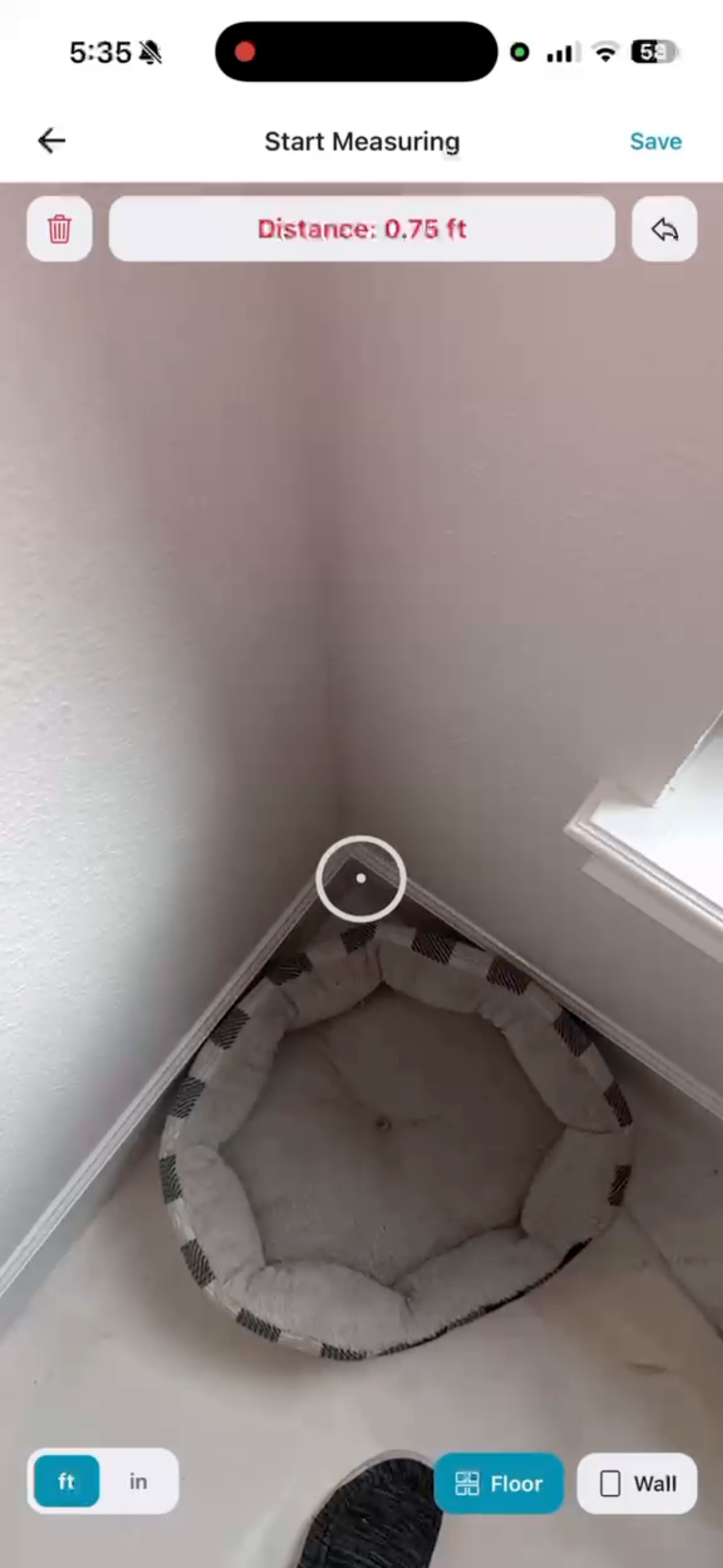
Once complete, tap save. and now you have the ability to come in, rename, and edit.
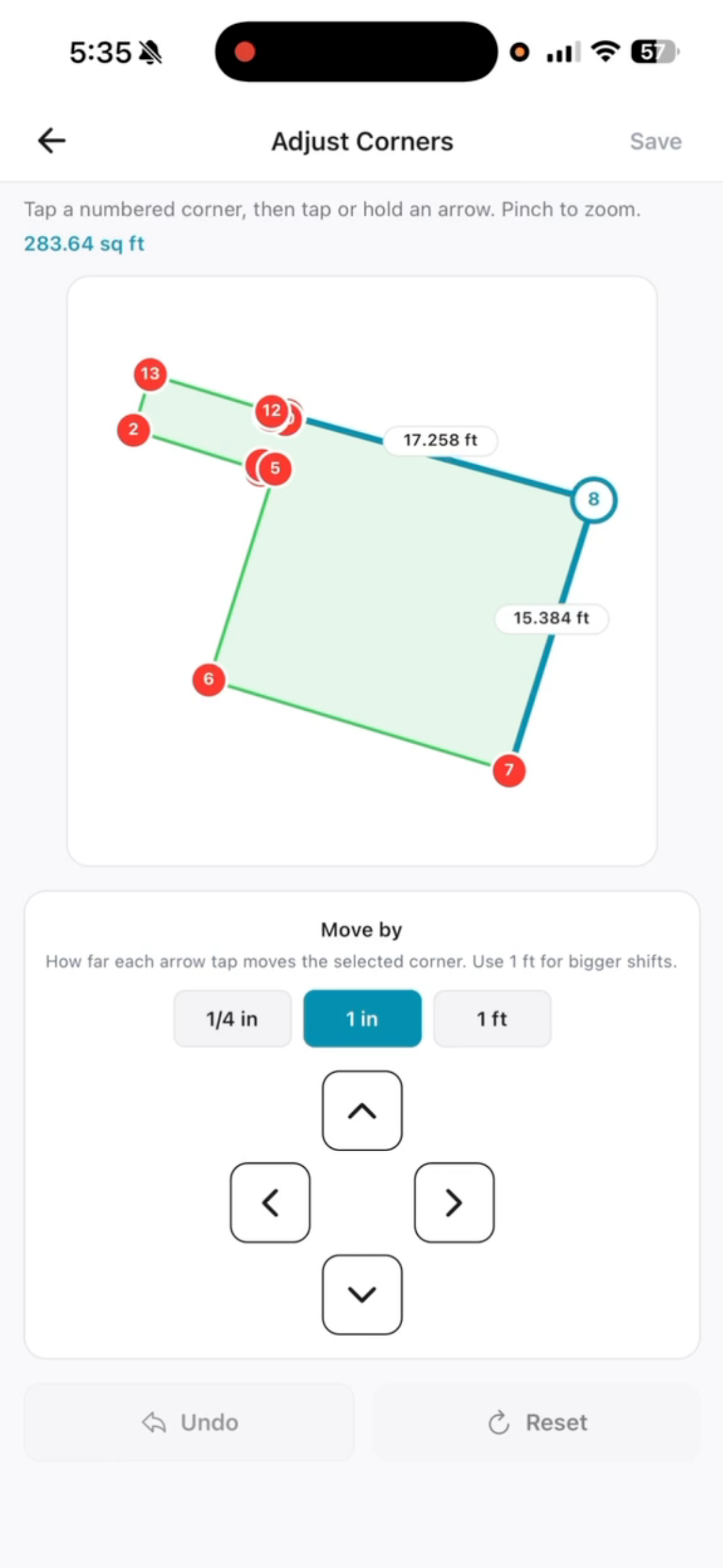
By clicking on a point, you can move it a foot, move it an inch, or move it a quarter of an inch. Then just hit reset to go back.
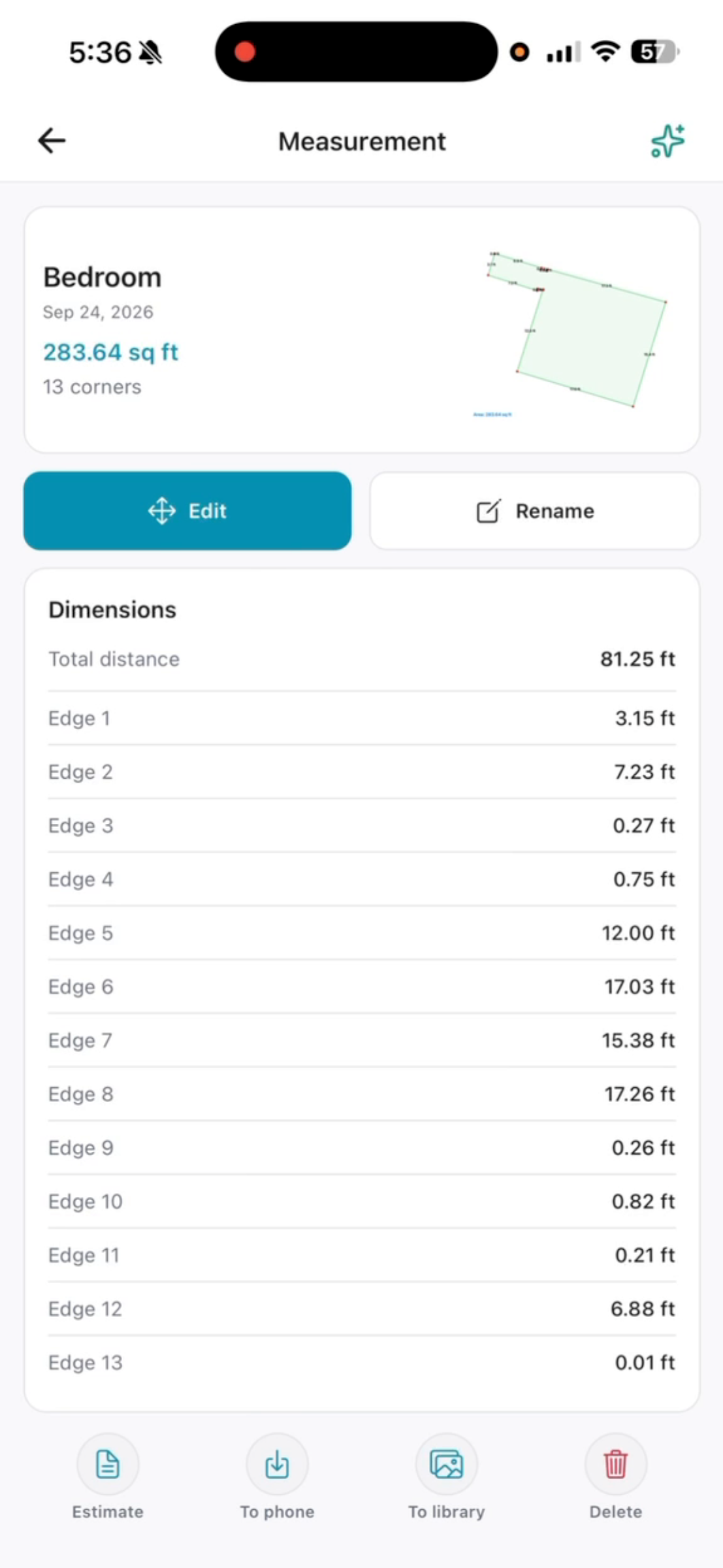
Hit your back arrow. Create it into an estimate. Save it to your phone, save it to your client’s folder, or delete it.
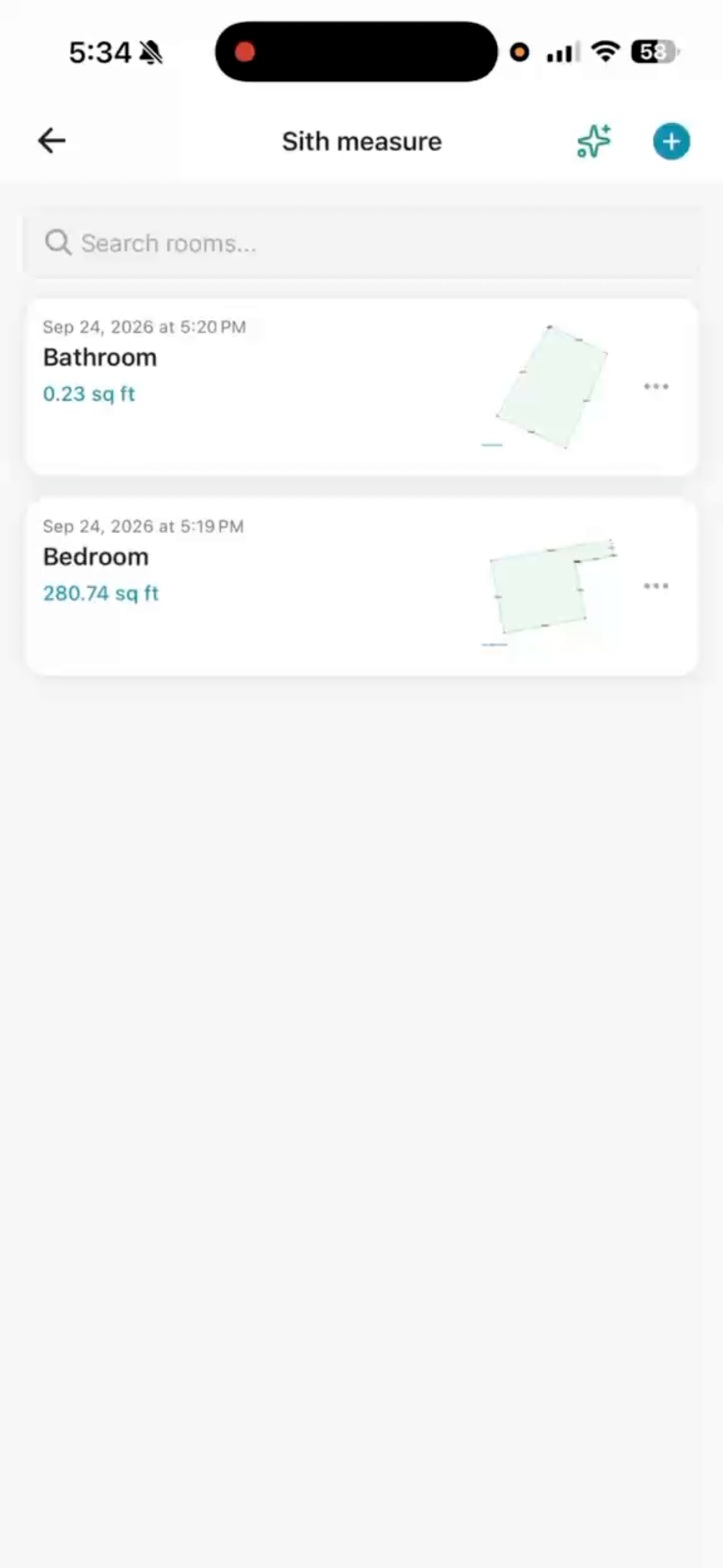
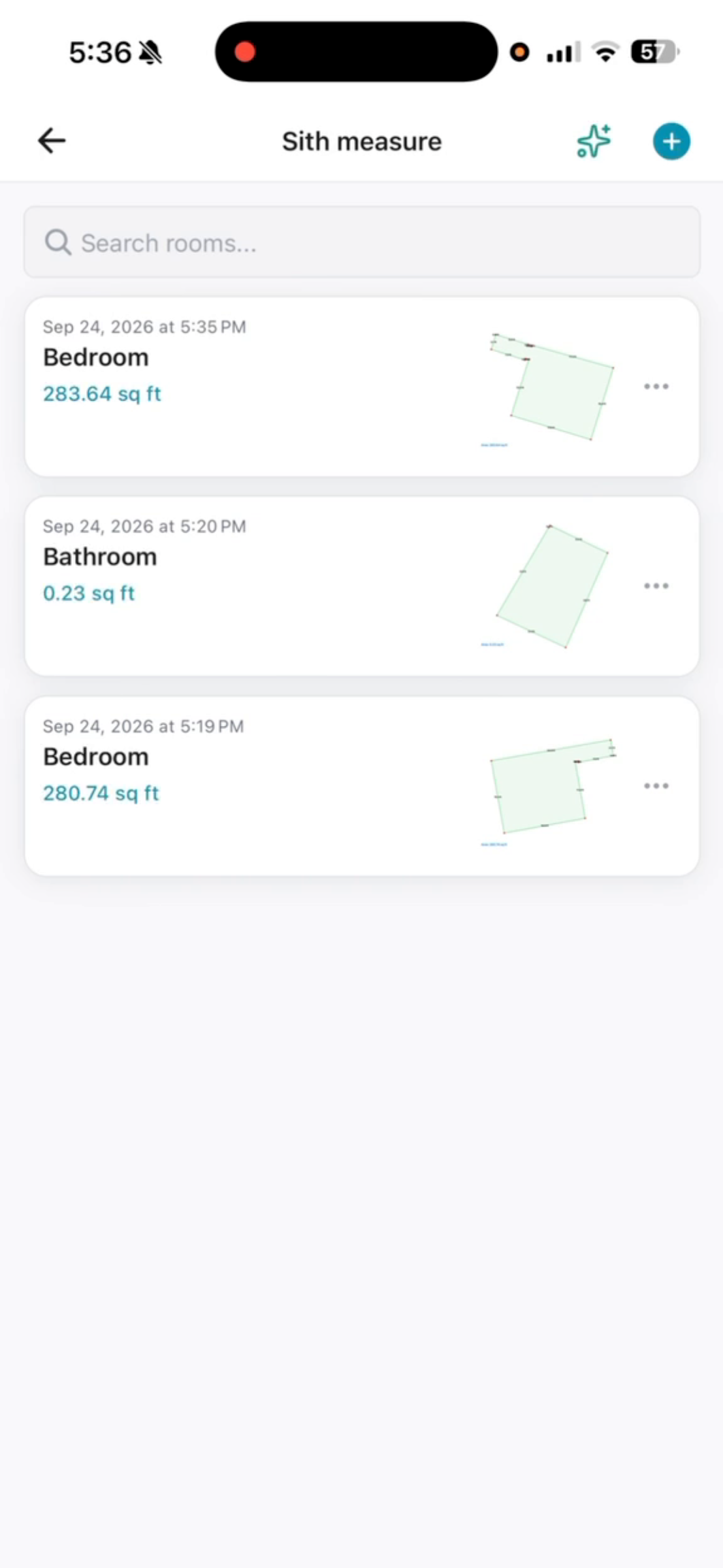
Now you come back to the scythe measure and you can see the additional rooms inside of their folder.
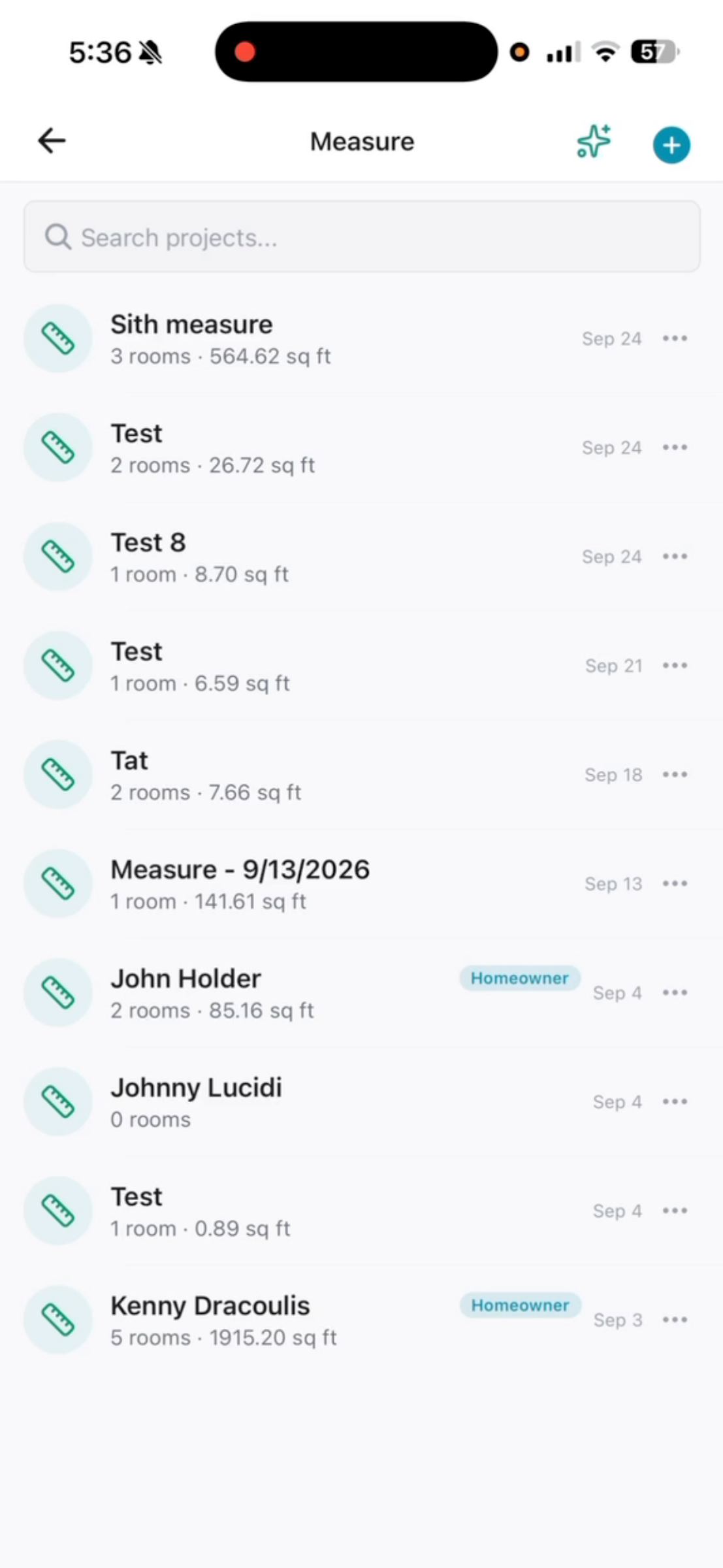
You also have the ability to send a homeowner link.
Here you can do it by just choosing the client’s name and sending it inside of our messaging system.
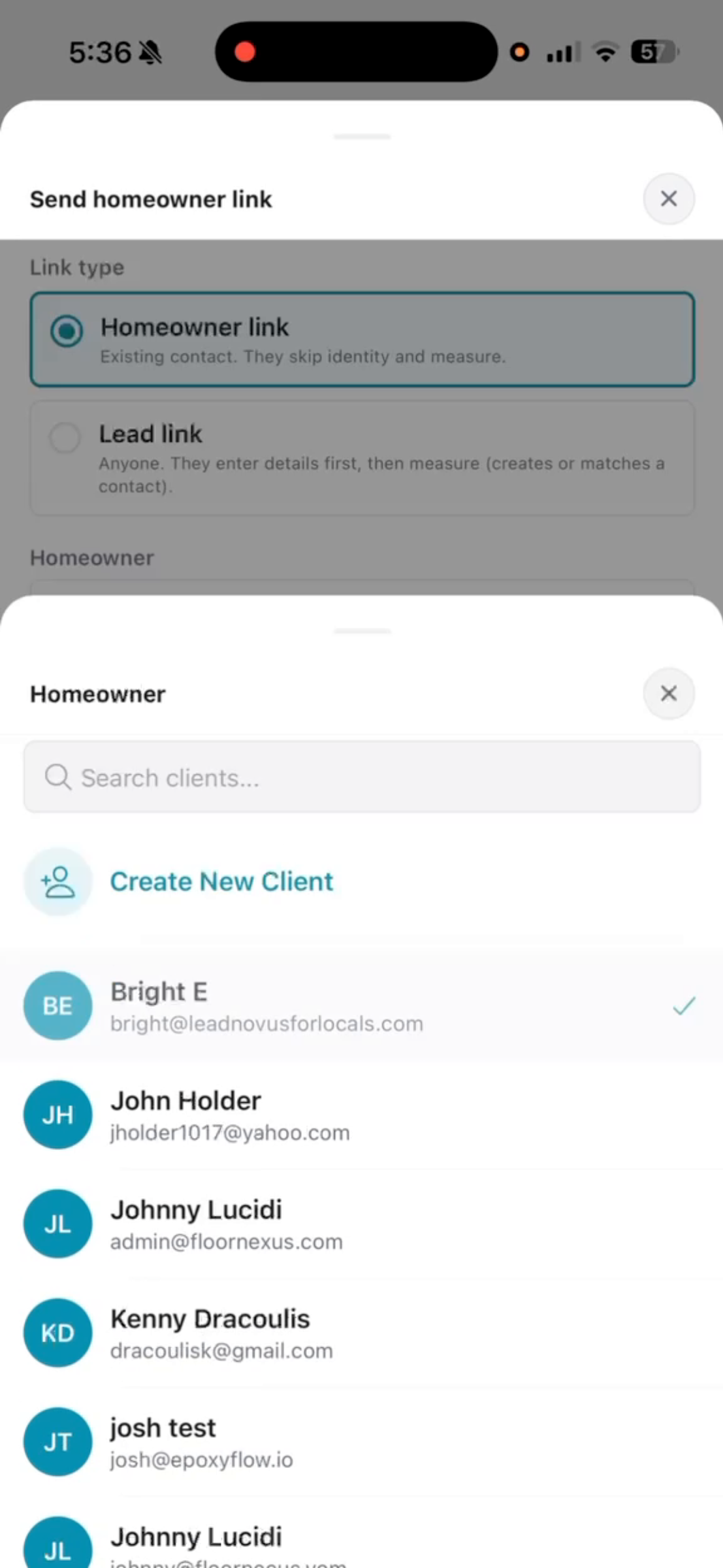
Or if you have a person asking for a quote, you can copy this link and send it to them, which will open up a way for them to measure the space themselves.